
1
Choose the model
Open the generator with MiniMax H3 Max selected and confirm the workflow mode.
Create polished videos up to 40 times faster than MiniMax H3, with near real-time generation for quicker creative iterations. Rapid previews: Turn short prompts into video in seconds.
AI VIDEO WORKFLOW
Create polished videos up to 40 times faster than MiniMax H3, with near real-time generation for quicker creative iterations. MiniMax H3 Max is the speed-focused version of the H3 video workflow for trying more creative directions quickly. Start from text or an image, direct the scene and motion, then review short clips before committing to a final cut.
Explore the inputs, controls, and creative workflows available with MiniMax H3 Max on Sora 2.
Turn short prompts into video in seconds. Write a short brief that names the subject, action, camera movement, and visual style. Generate a preview, inspect the timing, and adjust only the parts that need another pass.
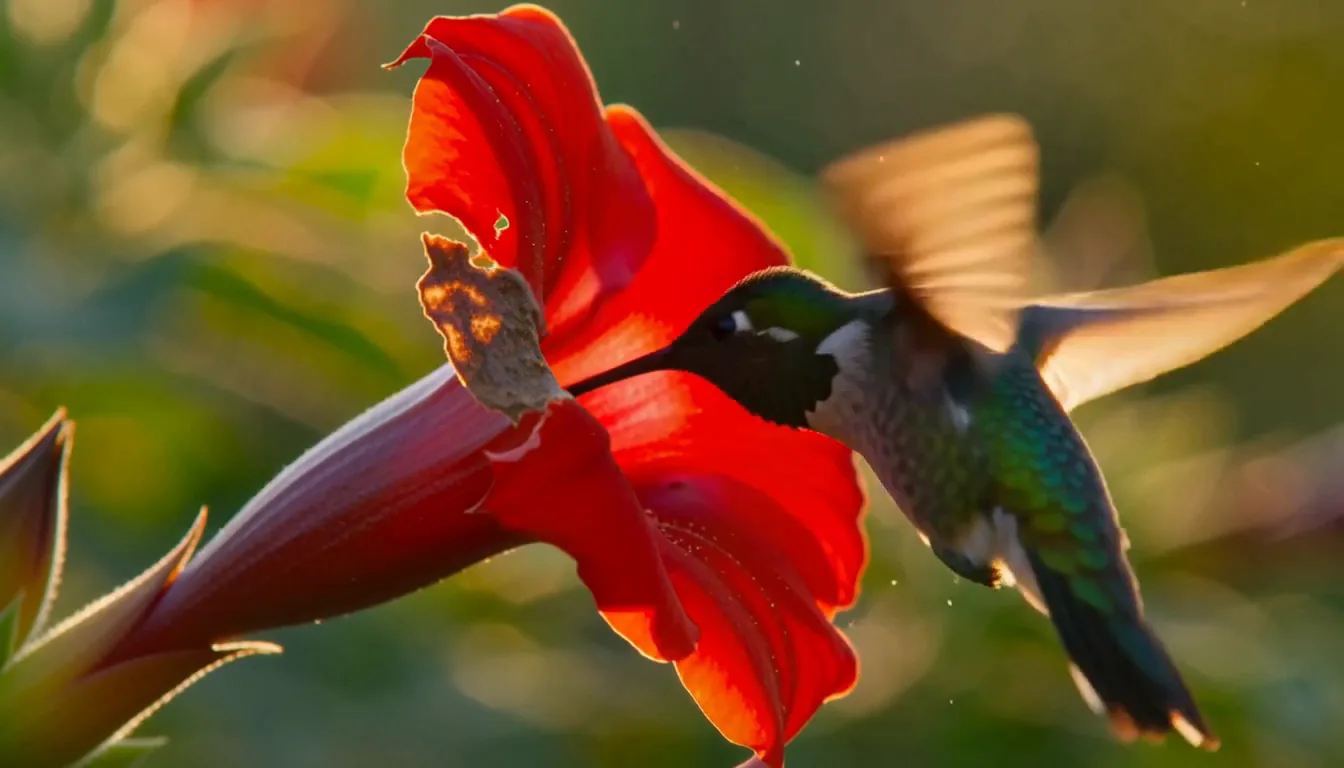
Keep motion and visuals aligned with the brief. Describe the order of actions and the details that must stay consistent from shot to shot. Clear prompts help the model keep motion, subject appearance, and composition aligned with the brief.
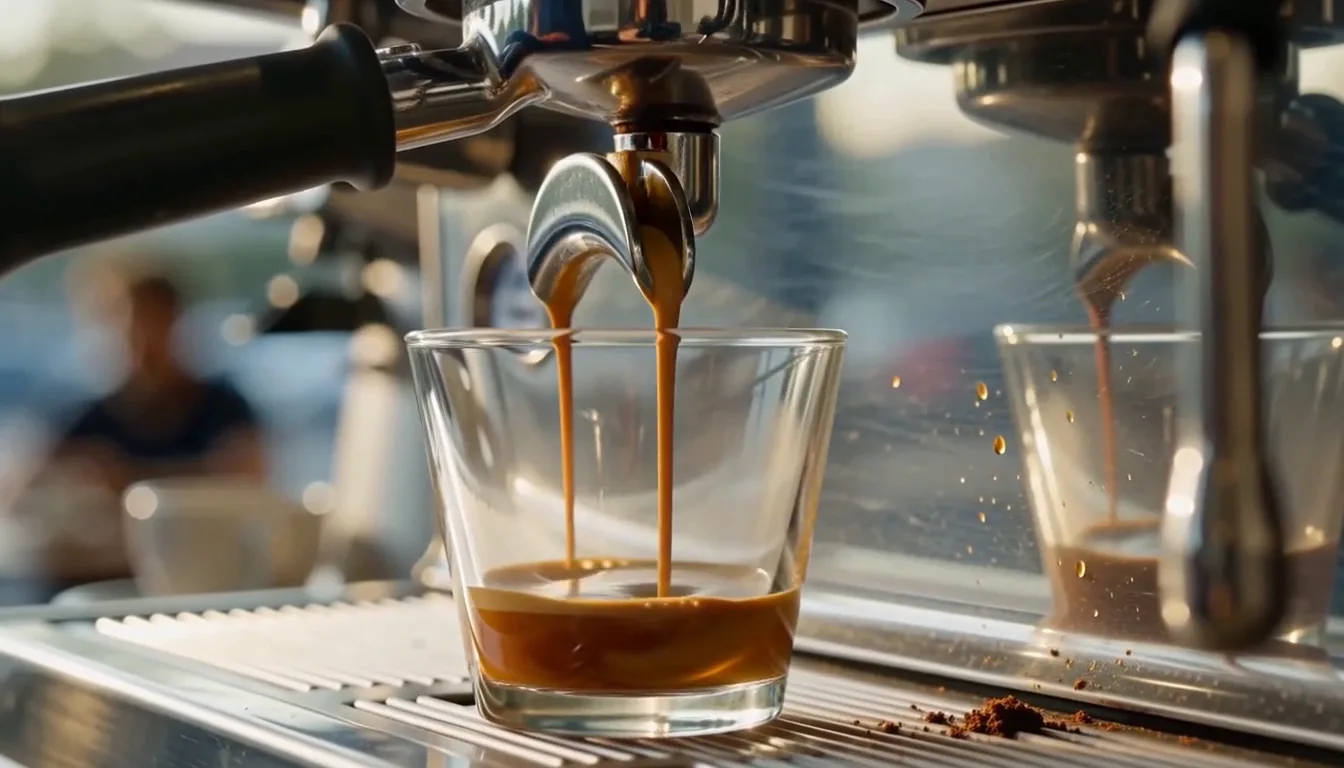
Produce polished, cinematic scenes. Direct lighting, materials, depth, and camera language to shape a more finished scene. Compare several takes to find the strongest framing before editing or exporting the clip.
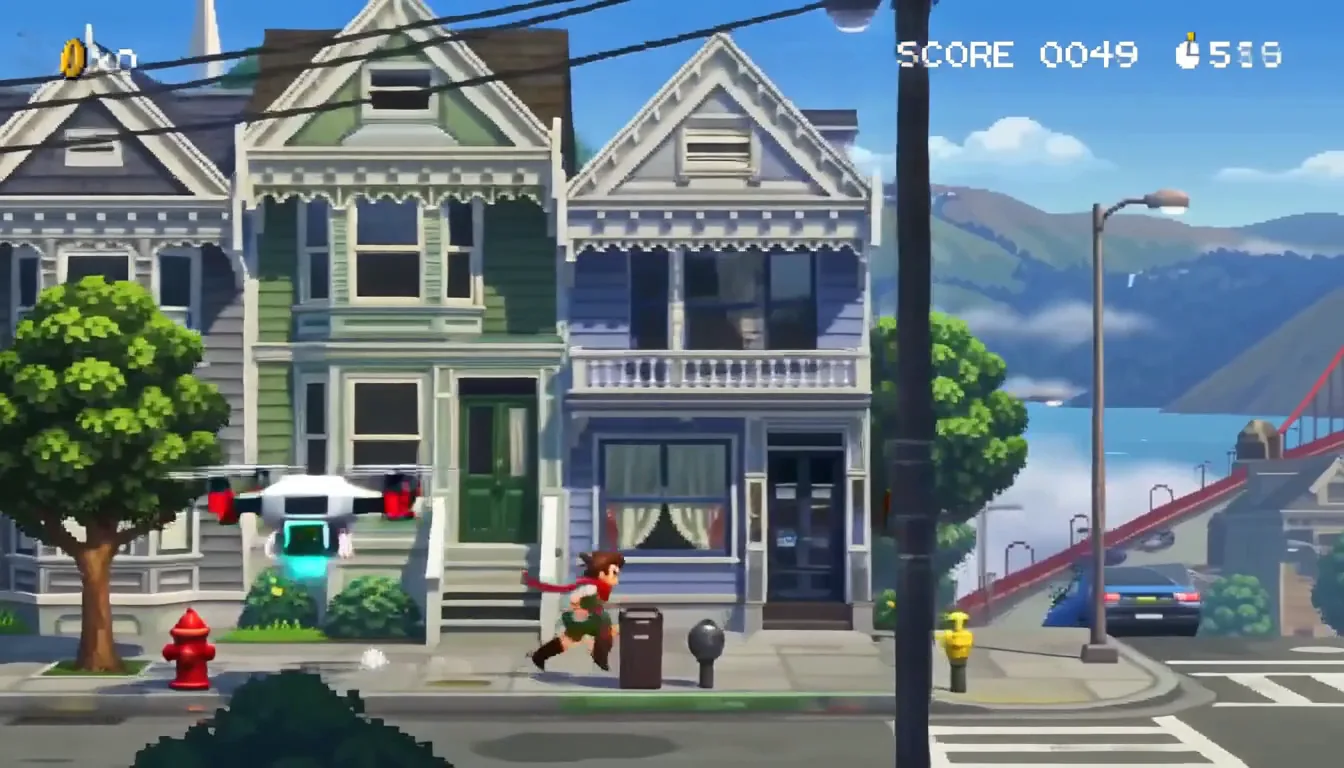
Animate a still or use reference images. Upload a starting image when character design, product appearance, or scene layout must be anchored. Use the prompt to describe the motion while the still image provides visual context.
| Capability | MiniMax H3 Max | Seedance 2.0 | Sora 2 Pro | Veo 3.1 Fast |
|---|---|---|---|---|
| Max Resolution | 480p, 768p | 720p, 1080p, 4K | 720p, 1024p, 1080p | 720p, 1080p, 4K |
| Input Types | Text, Image | Text, Image, Video, Audio | Text, Image | Text, Image, Video |
| Aspect Ratios | 16:9, 9:16, 1:1, 4:3, 3:4, 21:9, Adaptive | 16:9, 4:3, 1:1, 3:4, 9:16, 21:9, Adaptive | 9:16, 16:9 | 9:16, 16:9 |
| Max Duration | 15 sec | 15 sec | 20 sec | 8 sec |
| Function Mode | General, Frames, Reference | General, Frames, Reference, Editing, Extend | Not specified | General, Frames, Reference, Extend |
| Seed Control | Not listed | Supported | Not listed | Not listed |
| Web Search | Not listed | Supported | Not listed | Not listed |
Get started in three clear steps. No editing experience is required.
Open the generator with MiniMax H3 Max selected and confirm the workflow mode.
 2
Write a focused prompt and upload any source media required by the workflow.
Review the settings, generate, then refine the prompt or model for another variation.
See how prompts, references, formats, and model choices become practical creative directions.
MiniMax H3 Max helps solo creators and teams explore more directions without adding more production tools.
Develop social concepts, series formats, and visual experiments faster.
Create campaign directions, channel variations, and localized assets from one workflow.
Prototype product media, launch concepts, and seasonal variations before full production.
Use AI for previsualization, mood development, storyboards, and option exploration.
Create polished videos up to 40 times faster than MiniMax H3, with near real-time generation for quicker creative iterations. MiniMax H3 Max is the speed-focused version of the H3 video workflow for trying more creative directions quickly. Start from text or an image, direct the scene and motion, then review short clips before committing to a final cut.
Open the generator, choose MiniMax H3 Max, add a prompt and any required source media, review the settings, and generate. Write a short brief that names the subject, action, camera movement, and visual style. Generate a preview, inspect the timing, and adjust only the parts that need another pass.
The available inputs appear directly in the generator and change with the selected model and workflow mode. Upload a starting image when character design, product appearance, or scene layout must be anchored. Use the prompt to describe the motion while the still image provides visual context.
You can use the settings exposed by the model, including supported aspect ratios, resolution, duration, and reference limits.
Yes. Sora 2 keeps leading models in one workspace so you can compare inputs, formats, and workflow modes.
Rights can depend on the model, source media, plan, and local law. Review the terms and use only assets you have permission to upload.
Write a concrete brief with subject, composition, action, camera or lighting, style, and final use. For edits, state what must stay unchanged.
Compare other AI models available in the Sora 2 creative workspace.
Start creating with MiniMax H3 Max in the Sora 2 workspace.
Try MiniMax H3 Max NowCreate polished videos up to 40 times faster than MiniMax H3, with near real-time generation for quicker creative iterations.